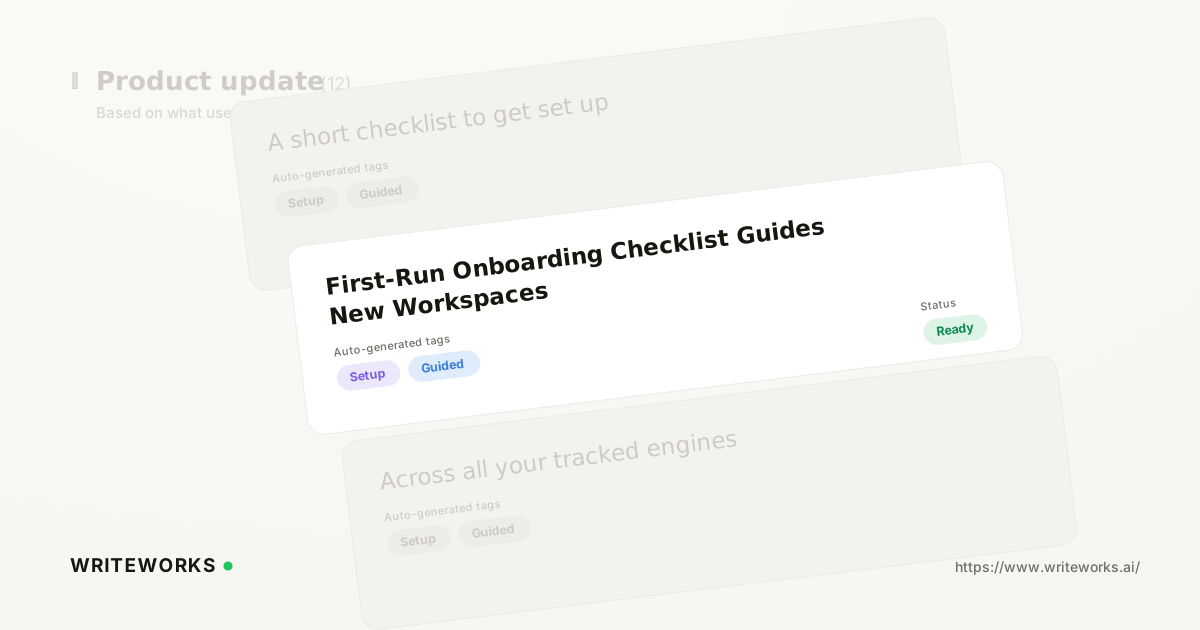
In short: WriteWorks has launched a first-run onboarding checklist - a guided setup card on the dashboard for brand-new accounts. It replaces an empty dashboard with a clear "do this first" path across five steps: set up your brand, add prompts, run a scan, connect Search Console and write a draft. Each step ticks off automatically based on your real workspace data, and the card disappears once setup is complete.
Day one in any new analytics tool tends to look the same: a dashboard of zeros, a navigation bar full of features and no obvious first move. The onboarding checklist removes that guesswork by putting the sequence in front of you, in the order that actually produces a result.
What is the first-run onboarding checklist?
The first-run onboarding checklist is a guided setup card that appears on the WriteWorks dashboard in brand-new workspaces and lists the five steps needed to reach a first real AI-visibility result. Instead of exploring the product to work out what matters, you work down a short list where every row links straight to the screen that completes it.
The five steps are sequenced deliberately: brand setup first, because everything else is measured against it; then prompts, so there is something to track; then a scan, so there is data; then Search Console, so AI-search visibility sits alongside traditional search performance; then a draft, so you see the content side of the platform too.
How the onboarding checklist works
Completion is derived from your workspace's real data rather than from a button you press to mark something as done. When you save your brand details, add your first prompts or finish a scan, the corresponding row ticks off on its own the next time the dashboard loads.
That has two practical consequences. First, the checklist can't drift out of sync with reality - it reflects what exists in the workspace, not what someone claimed to have finished. Second, it gets out of the way: once all five steps are complete, the whole card hides automatically, so the dashboard returns to being a dashboard rather than a permanent to-do list.
The checklist is a wrapper around existing WriteWorks functionality. It doesn't change how brand setup, prompt tracking, scans, Search Console connection or drafting work - it simply orders them and shows progress.
Who the onboarding checklist is for
It's especially useful if you:
- Are setting up a WriteWorks workspace for the first time and want the shortest route to a first scan result.
- Manage several brands or clients and need a repeatable setup routine that anyone on the team can follow without a handover call.
- Are onboarding colleagues - an SEO analyst, a content lead, a junior marketer - and would rather the product taught the sequence than write an internal wiki page for it.
- Have started an account, been pulled away, and come back unsure how far you got.
Experienced users benefit too, mainly as a completeness check. Connecting Search Console is the step most often skipped in a hurry, and the checklist makes that omission visible instead of silently limiting what the workspace can show you.
What the onboarding checklist changes
The practical shift is that a new workspace now has an obvious next action at every point until it's fully configured. Empty dashboards are a common reason tools stall after signup: there is nothing to react to, so the account sits half-built and the first real insight never arrives.
For teams, it also standardises setup. When every workspace is taken through the same five steps, brand data, tracked prompts, scan history and Search Console are all in place before anyone starts drawing conclusions from the numbers - which makes comparisons between brands or reporting periods far more trustworthy.
How to use the onboarding checklist
1. Open the Dashboard on a new workspace. The checklist appears at the top of the page.
2. Work down the rows in order - each one links straight to the screen where that step is completed.
3. Complete brand setup, so scans and reporting are anchored to the right brand and context.
4. Add prompts you want to monitor across AI engines such as ChatGPT, Claude, Perplexity, Gemini and Google AI Overviews.
5. Run a scan to generate your first set of visibility results.
6. Connect Search Console so AI-search visibility sits next to your organic search data.
7. Write a draft to see how insights feed into content production.
8. Return to the Dashboard. Completed steps are already ticked; once all five are done, the checklist hides itself.
Tips for a better result
- Add prompts that reflect how buyers actually phrase questions in an AI chat, not just the head terms you'd target in traditional search. Longer, more conversational prompts usually surface more useful competitive detail.
- Don't defer the Search Console step. Connecting it early means your first month of AI-visibility data has organic context to sit against, rather than being backfilled later.
- If you're rolling WriteWorks out across several brands, run one workspace through the checklist yourself first, then hand the same five steps to the rest of the team as the standard setup path.
Frequently asked questions
What are the five steps in the WriteWorks onboarding checklist?
The checklist covers five setup steps: complete brand setup, add the prompts you want to track, run your first scan, connect Google Search Console, and write a draft. Each row links directly to the relevant screen, so you can complete a step without hunting through the navigation.
Do I have to tick the steps off manually?
No. Completion for each step is derived from your workspace's real data, so items tick off automatically as you finish them. There's no separate "mark as done" action to remember, which means the checklist always reflects the actual state of your workspace rather than someone's best guess.
Can I get the checklist back after it disappears?
The card hides automatically once all five steps are complete, since its job is finished at that point. Behaviour for re-displaying the checklist in an existing workspace is not something to assume - placeholder: confirm with the product team before publishing.
Does the checklist appear in existing workspaces?
The checklist is designed for brand-new accounts, where an empty dashboard offers the least guidance. Placeholder: confirm whether partially configured existing workspaces also see the card before publishing.
Which plans include the onboarding checklist?
Placeholder - confirm plan availability and release date before publishing. See WriteWorks pricing for current plan details.
The bottom line
The first-run onboarding checklist turns an empty dashboard into a five-step path to a first real result, tracks progress from your actual workspace data, and then gets out of the way. It's a small change to the interface with a straightforward outcome: fewer half-built workspaces, and faster time to a first scan you can act on.
If you're setting up a new workspace - or rolling WriteWorks out to a wider team - open the Dashboard and work down the checklist. More product updates and practical guides are in the WriteWorks resources hub.