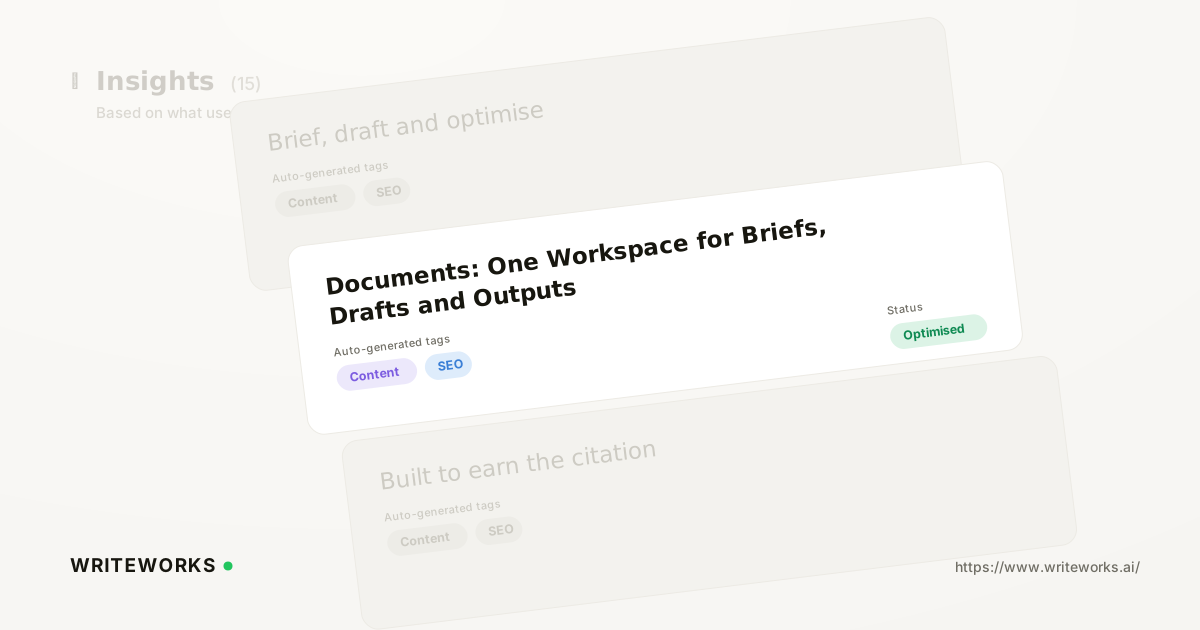
We just shipped Documents, a shared workspace where briefs, drafts and AI agent outputs live together instead of scattering across docs, tabs and chat threads. Each document stays connected to the work it came from - the tracked prompt, the brief or the page being improved - so anyone picking it up can see the reasoning, not just the text. It's aimed at content and growth teams running AI-search work across more than one person.
The problem this removes is mundane but expensive: a brief is generated in one place, the draft is pasted into another, an agent output ends up in someone's downloads folder, and within a fortnight nobody can say which version shipped or why it was written that way.
What is Documents?
Documents is a content workspace inside WriteWorks that stores your briefs, drafts and agent outputs as editable documents alongside the AI-search data that prompted them. Instead of treating written output as a by-product that leaves the platform immediately, WriteWorks keeps it in the same place as the prompts, pages and visibility metrics it relates to.
Practically, that means a brief built from tracked prompts, the draft written against it, and the revision an agent produced later are all the same lineage of work - visible to the whole workspace rather than one person's account.
How Documents works
Documents works as a library at workspace level: anything created in WriteWorks that produces written output can be saved as a document, and every member of that workspace can find it. Outputs from agentic workflows and from the content engine land here rather than needing to be copied out to be kept.
Each document retains its context. Where a document was created from a brief, an optimisation task or a tracked prompt, that origin travels with it, so a reviewer can see what the piece was meant to achieve before they start editing. Documents you create yourself sit in the same library, so hand-written and AI-assisted work are managed the same way.
Documents is a place to draft, organise and review content - it is not a publishing tool. Getting the finished piece onto your site still happens in your CMS.
Who Documents is for
It's especially useful if you:
- Work in a team where one person researches prompts, another writes and a third reviews before anything ships.
- Run several brands or clients and need each one's drafts kept separate but consistently organised - a common need in agency multi-brand AI search work.
- Produce a steady stream of agent outputs and want them stored somewhere durable instead of copied out of a run screen.
- Revisit older pages regularly and need to see what the original brief asked for before rewriting.
- Hand work between freelancers or agencies and want the context to travel with the file.
Advanced users benefit too: if you already run structured workflows, Documents gives those runs a permanent destination and makes the output reviewable by people who never open the Builder.
What Documents changes
The practical shift is that context stops being lost at the handover. Previously, the useful part of AI-search work - the prompt you were targeting, the gap you found, the sources you wanted to earn - lived in the platform, while the writing lived somewhere else. Documents closes that gap so the brief, the draft and the reason for both sit together.
That matters for quality as well as tidiness. Google's own guidance on creating helpful, reliable, people-first content stresses demonstrable expertise and a clear purpose behind each page; briefs and drafts reviewed side by side make it far easier to check that a piece actually delivers on the intent it was commissioned for, rather than just filling a word count.
It also changes review. Because documents are shared at workspace level, a reviewer doesn't need access to the agent that produced the draft - they just need the document.
How to use Documents
1. Open Documents in your WriteWorks workspace to see the library of existing briefs, drafts and outputs.
2. Create a new document directly, or generate one from an existing brief or optimisation task so the source context is attached.
3. Run an agent or workflow and save its output to Documents, where it becomes an editable draft rather than a one-off result.
4. Edit and review in place, using the attached brief or prompt as the reference for what the piece needs to cover.
5. Export or copy the approved version into your CMS when it's ready to publish.
Tips for a better result
- Name documents after the prompt or page they target, not the campaign - future you will search for the topic.
- Generate the brief first and the draft second, so the document carries its intent from the start.
- Keep one document per URL you're improving; separate documents for separate pages make change history easier to follow.
- Review agent outputs in Documents before editing heavily, so you can see what the model produced unaided.
Frequently asked questions
Is Documents a replacement for Google Docs or Notion?
No. Documents is built for content that originates in WriteWorks - briefs, drafts and agent outputs tied to AI-search data. Many teams will still use a general-purpose editor for wider planning documents. The value of Documents is proximity: the draft sits next to the prompt research, brief and page data that shaped it.
Do agent outputs save to Documents automatically?
Outputs from agents and workflows can be saved into Documents so they become editable drafts rather than disposable run results. Whether a given run saves automatically or on request depends on how the workflow is configured, so check the workflow's settings if you want every run captured in the library.
Can the whole team see my documents?
Documents live at workspace level, so members of that workspace can find them. That's deliberate: shared visibility is what stops briefs and drafts fragmenting across individual accounts. If you manage several brands or clients, keep them in separate workspaces to keep their content libraries apart.
How does Documents relate to content briefs?
Briefs are the input; documents are where the work happens and is kept. If you already build content briefs from the prompts AI engines answer, Documents gives those briefs a destination - the draft written against them stays attached, so reviewers can compare the finished piece to the original requirement.
Does using Documents affect my AI-search tracking?
No. Tracking is unchanged. Documents sits alongside AI Search Visibility tracking as the production side of the same loop: you see where you're cited, decide what to write, and keep the resulting work in one place. Measurement and drafting stay separate functions.
The bottom line
Documents keeps briefs, drafts and agent outputs in one shared workspace, still attached to the prompts and pages they came from, so content work survives handovers and review cycles intact. If your team produces AI-assisted content at any volume, it's worth restructuring how you store drafts around it - see how it fits the wider workflow for content teams working in AI search, or review WriteWorks pricing to find the plan that suits your setup.